
Everything you need to install, configure, and run it.
One signed Windows installer, two settings tabs, and a single global shortcut. This page covers what each option does, what it defaults to, and what to check first when something doesn't behave the way you expect.
Installation
A single signed .exe. No separate runtime, and no account required just to download it.
- 01
Download the installer
Grab the signed Windows x64 build from the download link above or the pricing page.
- 02
Run it, then open the app
Standard Windows installer — accept the prompt and launch from the shortcut it creates.
- 03
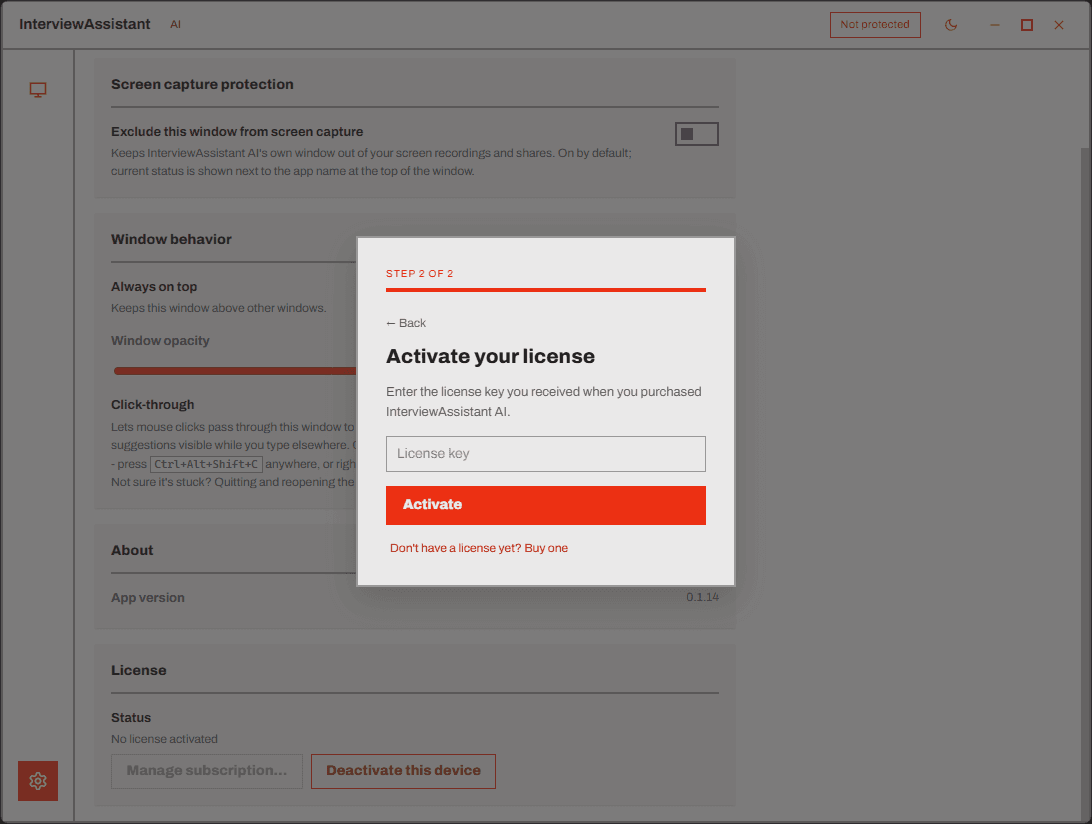
Activate your licence
First launch shows an activation screen. Paste the licence key from your purchase email, or buy one from there if you don't have it yet.
Settings, your encrypted licence, and API keys live under your Windows user profile — never inside the install folder, and never uploaded anywhere.
Configuration
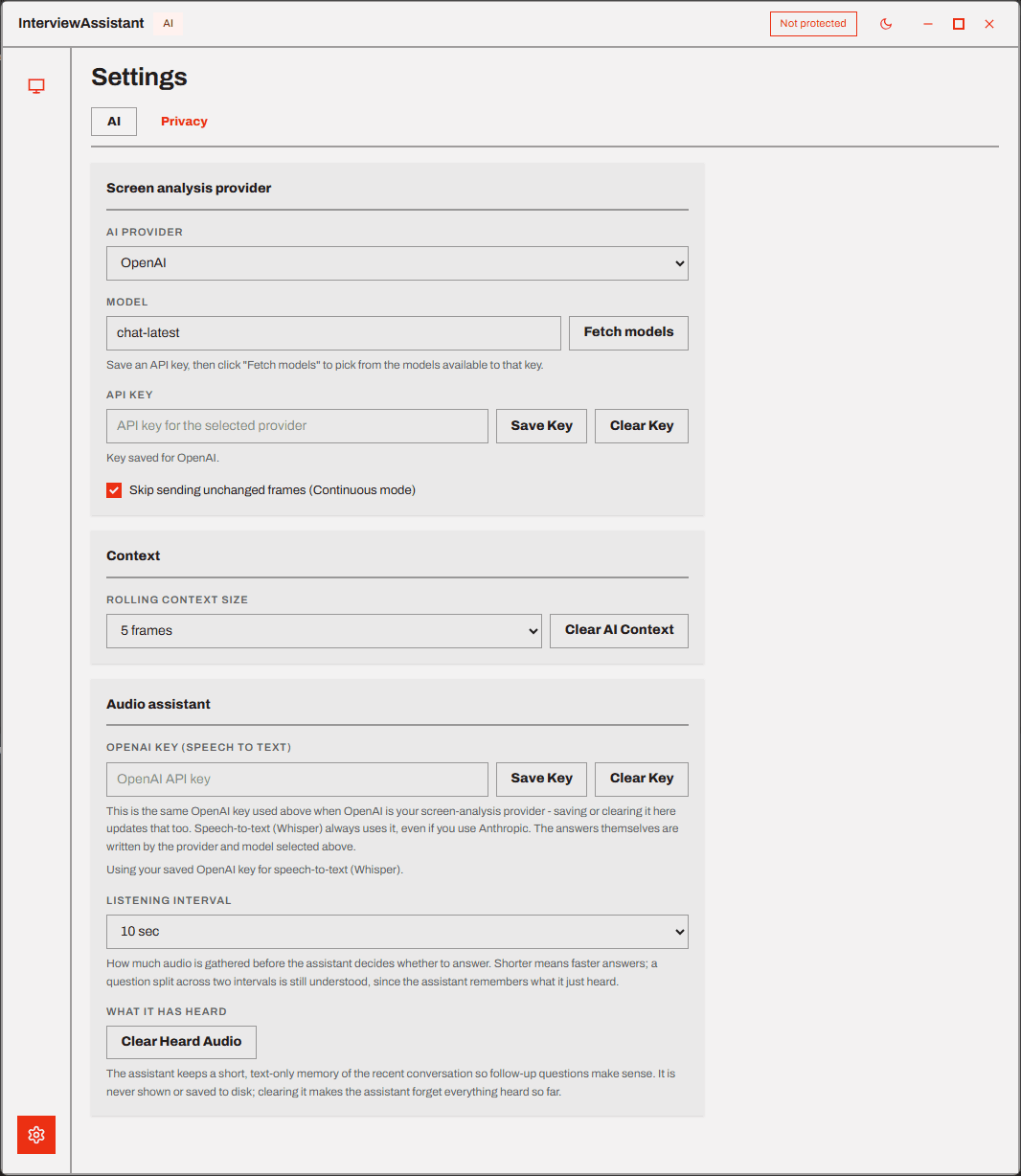
Everything below lives in two Settings tabs, AI and Privacy. None of it blocks opening the app — only asking the assistant a question.
- 01
Connect a provider key
Settings → AI. Paste an OpenAI or Anthropic key and click Save Key. It's sealed by the OS credential store and never leaves this screen.
- 02
Pick a provider and model
Choose OpenAI or Anthropic, then type a model name or click Fetch models to list what your key can reach. A Development Mock provider is also there for testing without spending tokens.
- 03
Turn on meeting audio — optional
Always transcribed by OpenAI Whisper regardless of which provider you picked for screen analysis, so it needs its own OpenAI key even under an Anthropic setup.
Running it
The same three moves for every question, whether you ask it once or leave Continuous mode watching.
- 01
Pick a source
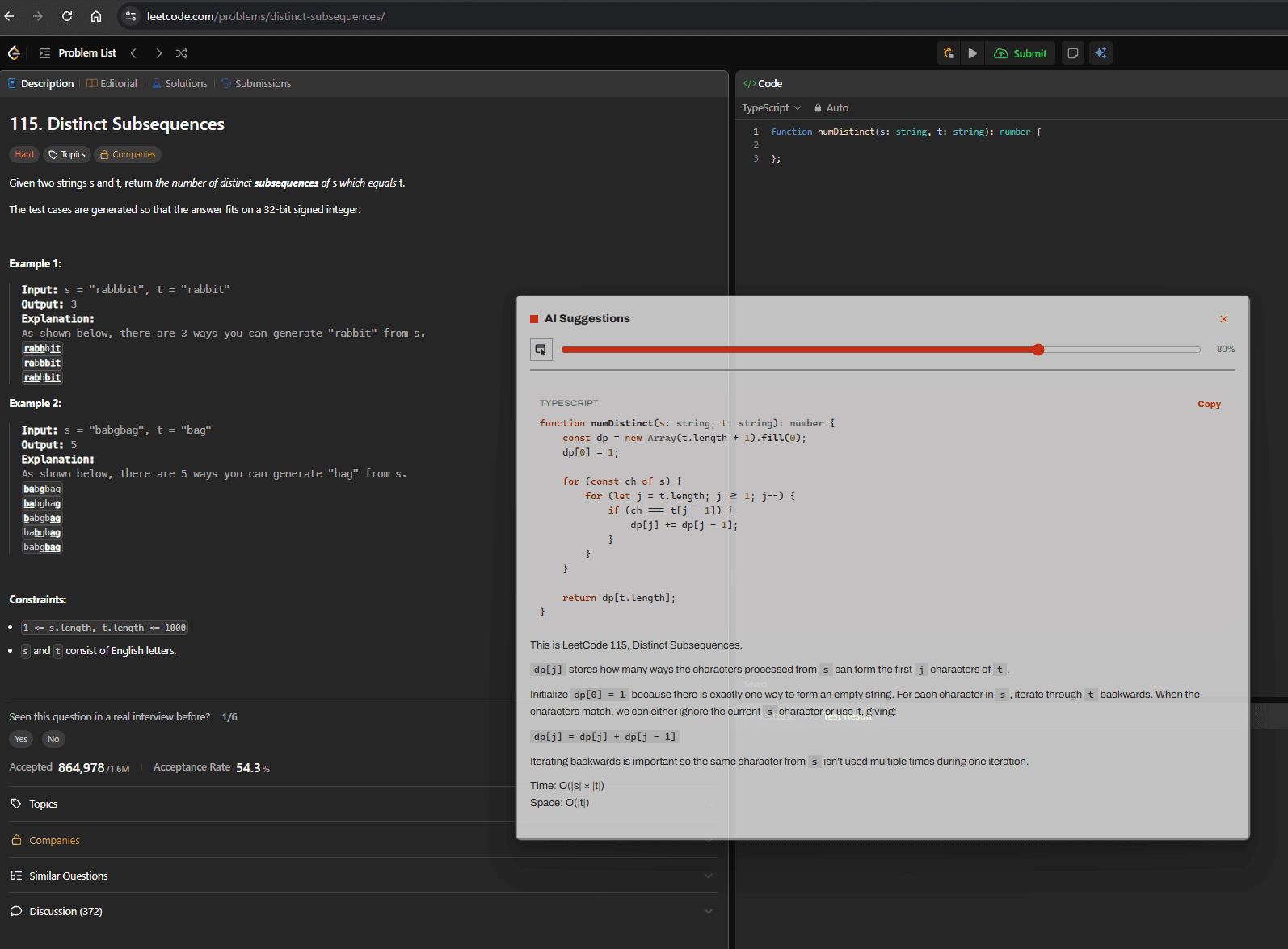
Choose a source... opens every screen and window with a live thumbnail. Nothing is captured until you start.
- 02
Ask, or let it watch
Type a question and press Enter, or click Analyze now. Flip on Continuous mode to re-check the source automatically at the interval you set.
- 03
Read the response
Answers stream into the response log. Switch to Focus Mode for a small always-on-top card — Esc restores the full window.
Content protection is on by default, so the window is excluded from screen shares and recorders wherever Windows supports it (build 2004 and later). A Protected / Not protected badge in Settings shows the current state.
Options & features reference
Every setting in the app, what it does, and what it defaults to.
AI tab
Privacy tab
Keyboard shortcuts
Only one shortcut works globally, from any window. The other two only fire while the app itself has focus.
- Ctrl+Alt+Shift+CToggle click-through — global, works even when another app is focused.
- EnterSend the prompt in the Ask AI field.
- EscExit Focus Mode and restore the full window.
If Ctrl+Alt+Shift+C does nothing, another app has likely already claimed that combination — registration fails silently when it's taken.
When something doesn't work
"No API key saved for this provider yet"
Open Settings → AI, paste a key for whichever provider is selected, and click Save Key. Keys are per-provider — switching providers without adding a key for it triggers this.
Meeting audio won't transcribe, or asks for an OpenAI key
Meeting audio always goes through OpenAI Whisper, regardless of which provider you picked for screen analysis. Add an OpenAI key even if you're running Anthropic for vision.
The window still shows up in a screen share or recording
Confirm you're on Windows 10 build 2004 or later — earlier builds fall back to a plain black window instead of true exclusion. It's a best-effort OS hint, not a guarantee, and it only ever covers this app's own window.
My licence key won't activate
Double-check the key from your purchase email and confirm you're online — the app also revalidates automatically every 12 hours, with a 14-day offline grace period before it locks. No key yet? Buy one from the activation screen.
The global shortcut doesn't do anything
Ctrl+Alt+Shift+C is the only global shortcut, and it fails silently if another app already claimed that exact combination. Check other utilities that bind global hotkeys for a conflict.
A question fails with an error instead of an answer
An empty prompt, a missing frame, or a captured frame over 25MB each show their own message in the response log rather than failing silently — the message tells you which one happened.
Still stuck?
Mail [email protected] and we'll help you sort it out. For how data is handled end to end, the security page has the full detail.